PDF Types Explained
This tool supports two ways Enpara can provide transaction data in PDF format.
Table of Contents
Why PDF Types Matter
PDF parsing depends on layout patterns. If layout and parser type do not match, output quality can drop.
Type1
Type1 is the manual-style statement layout.
Typical signs:
- Date appears like 28.03.2026
- Rows are often sentence-like and may wrap lines
- Transaction text may include merchant and city in one description block
Screenshot Placeholder
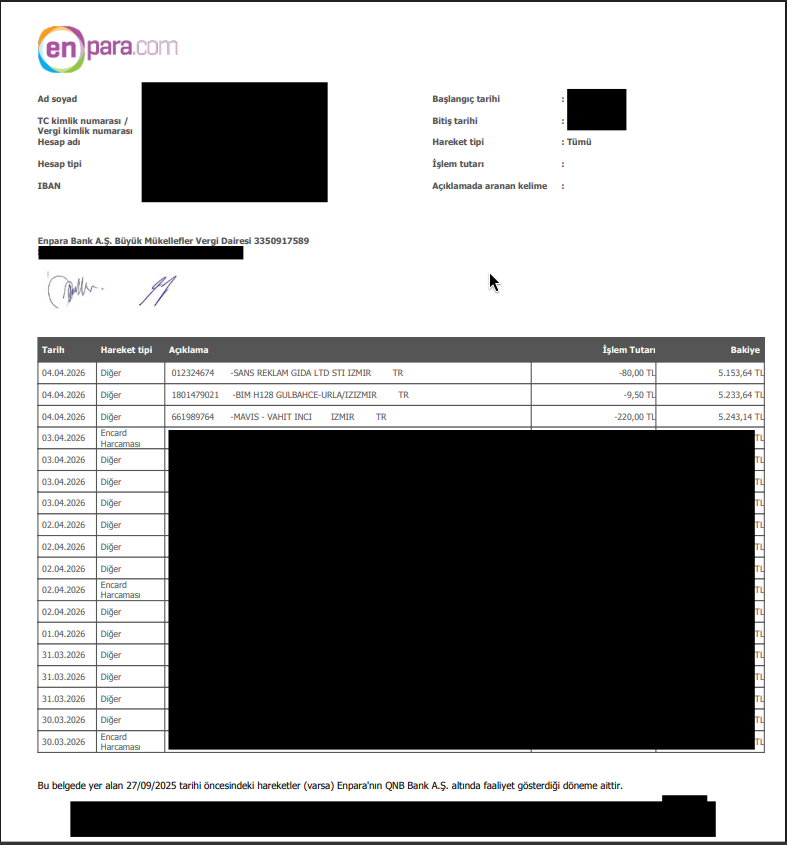
Where to add your screenshot notes
- Manual statement layout with sentence-like rows.
- Date format appears as dd.mm.yyyy.
Type2
Type2 is the automatic monthly statement layout.
Typical signs:
- Columns are clearly separated (Date, Description, Amount, Balance)
- Date often appears like 03/03/26
- Usually easier to parse row-by-row
Screenshot
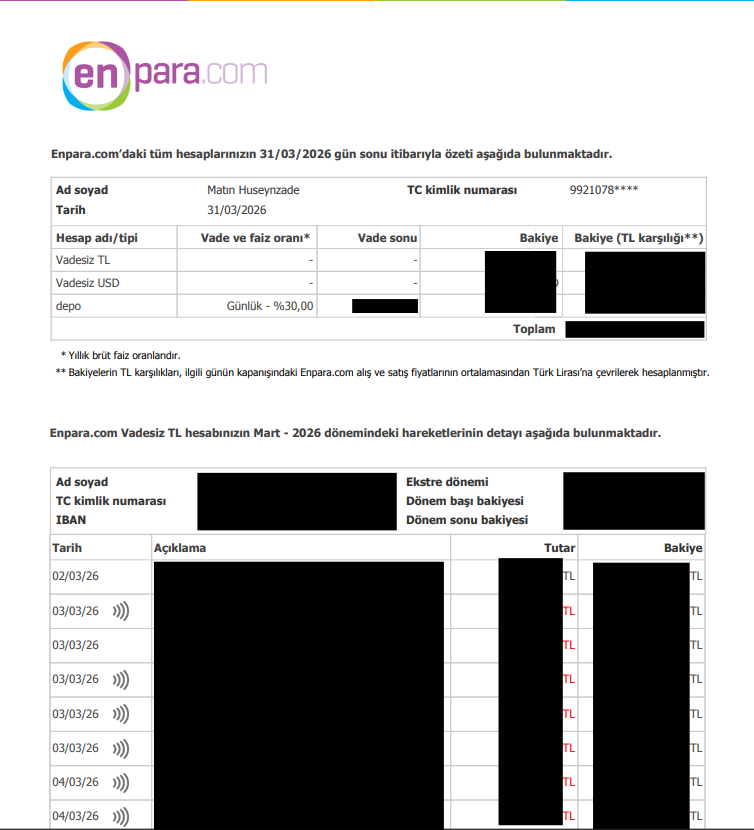
Auto Detection
Default type is auto.
In auto mode, the parser inspects the PDF text and chooses type1 or type2.
tip
Start with auto first. Force type1 or type2 only if output looks wrong.
How to Pick the Right Type
- Run once with auto.
- If data looks incomplete, rerun with --type type1.
- If still wrong, rerun with --type type2.
- Compare row counts and values.
Next Steps
- See practical rerun examples in CLI Usage
- Check repair steps in Troubleshooting